SELF-ORDERING SYSTEM · DIGITAL STORE SOLUTION

One system for every ordering touchpoint.

From ordering and payment to kitchen preparation, pickup calling, reporting, refunds and backup, TANGSHI connects the full store workflow in one local-first platform.

KioskCashierKitchen boardCustomer displayWeb adminLocal backup
Windows 10 / 11Android 10–16SQLiteZH / EN
Explore the system
SELF-ORDERING SYSTEM · DIGITAL STORE SOLUTIONOne system for every ordering touchpoint.
System & roles

System & roles

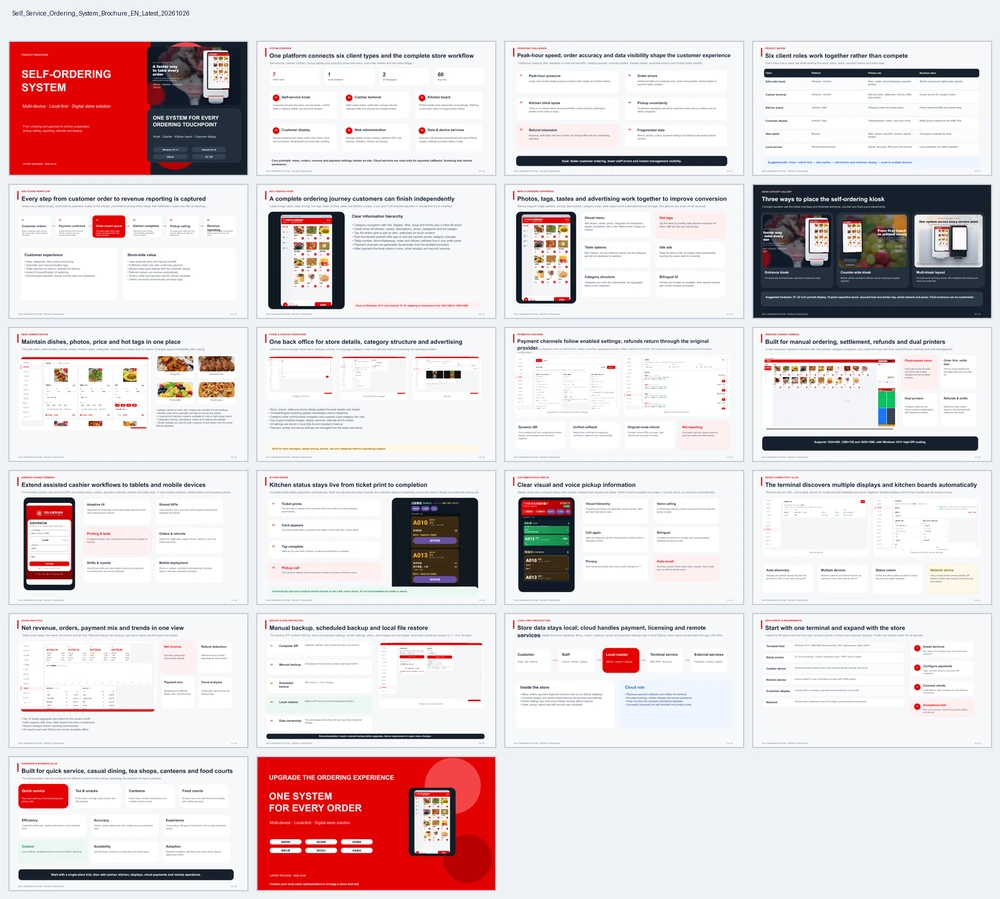
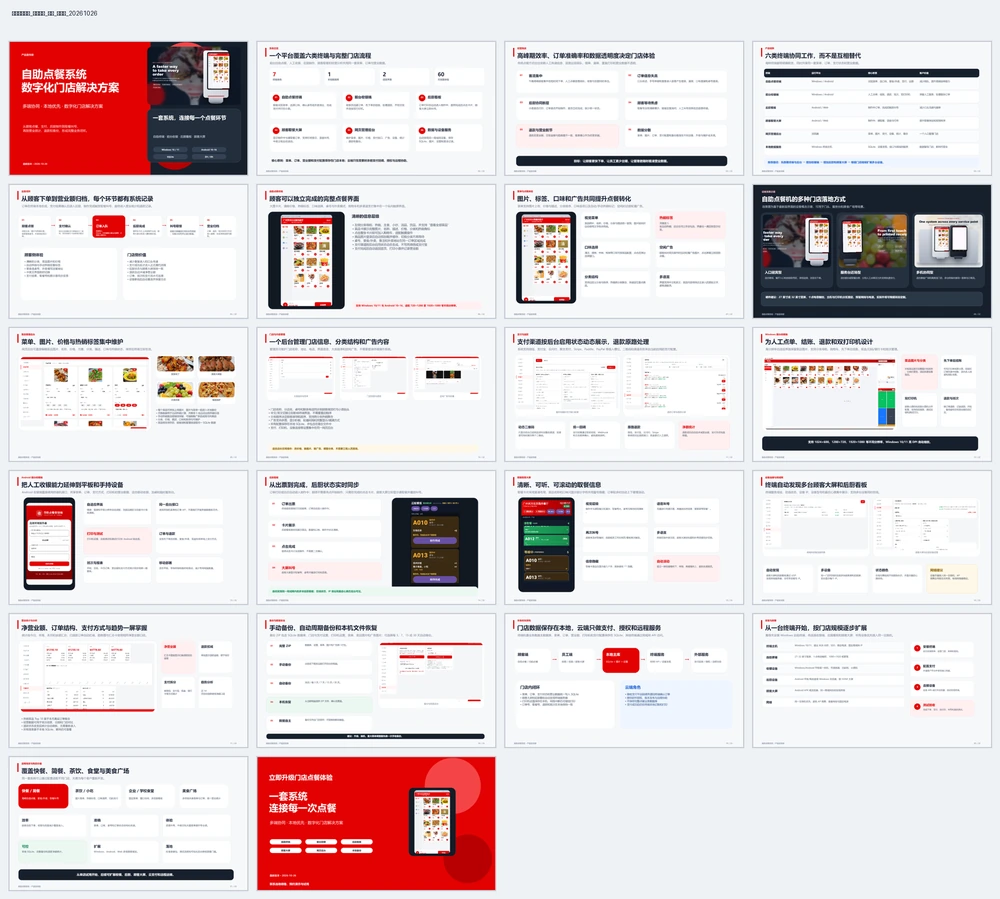
One platform connects six client roles and a complete store workflow.

02

SYSTEM OVERVIEW

One platform connects six client types and the complete store workflow

Self-service, cashier, kitchen, pickup display and analytics share one menu, one order stream and one sales ledger.

7client roles
1local database
2UI languages
60day trial
01

Self-service kiosk

Customers browse the menu, choose tastes, confirm table or delivery details, pay and print receipts.

02

Cashier terminal

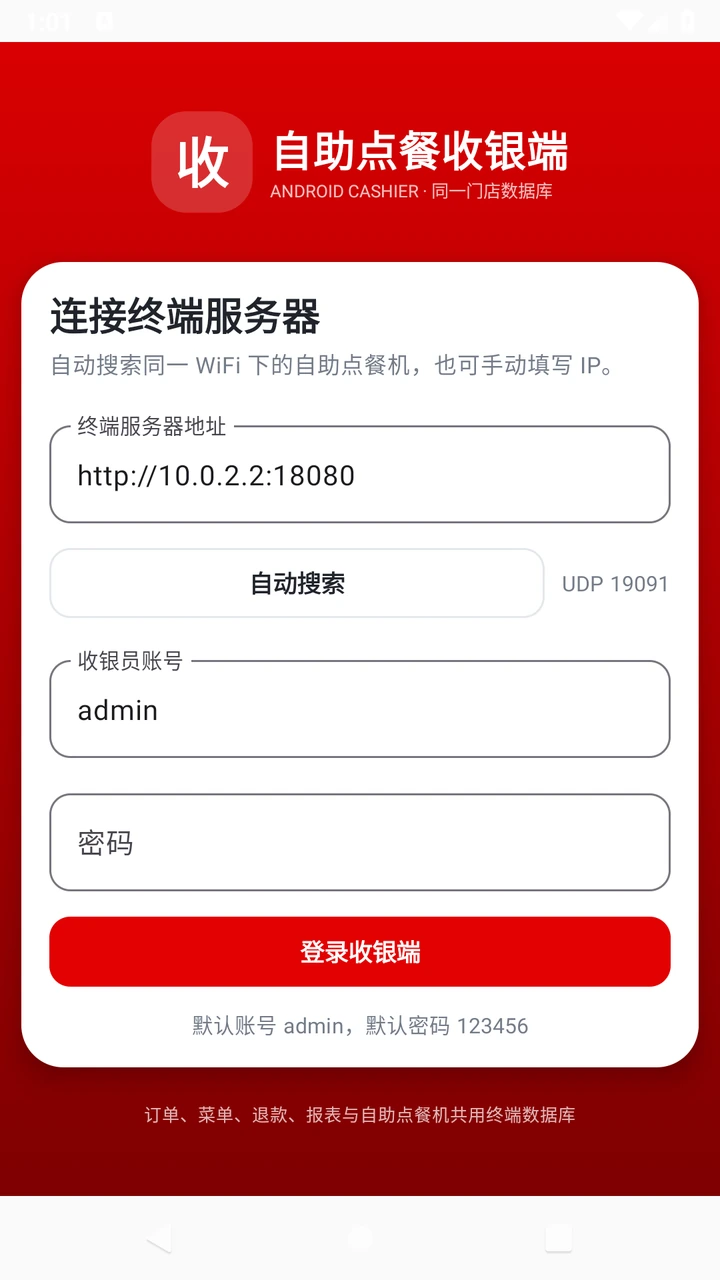
Staff create orders, settle later, process refunds, manage shifts and connect two receipt printers.

03

Kitchen board

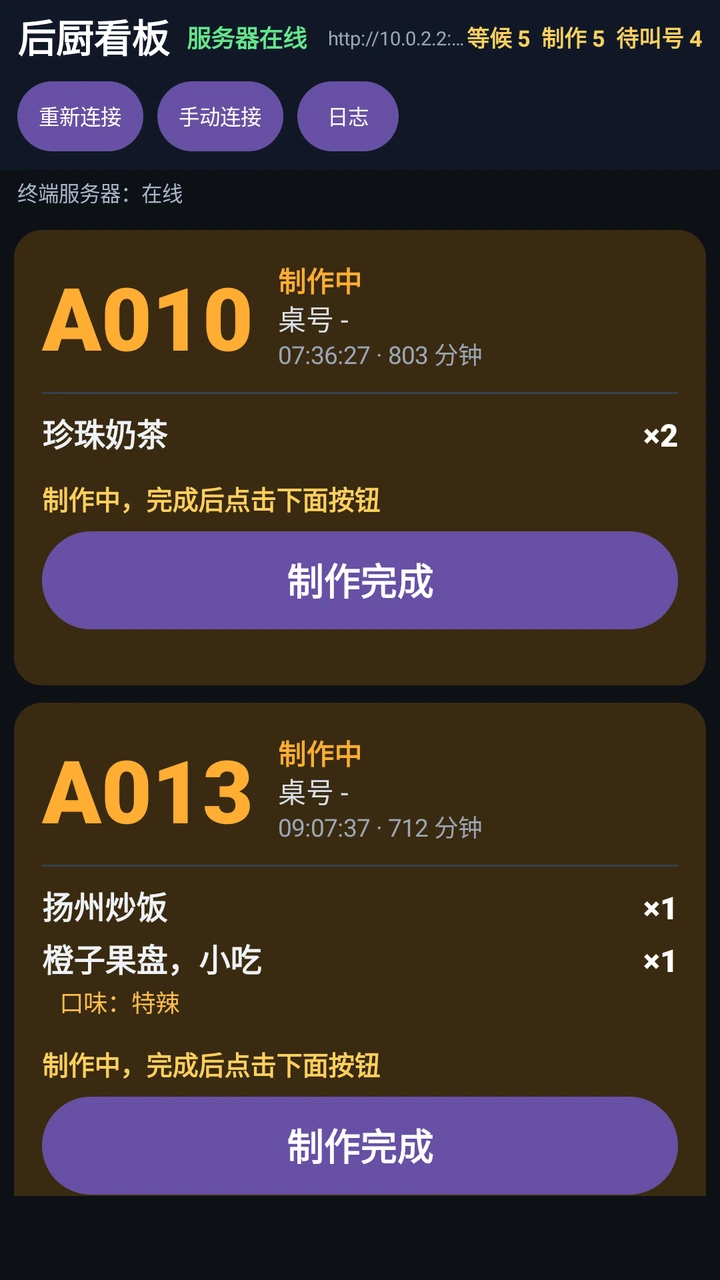
Printed tickets enter preparation automatically. Staff tap a card when ready to trigger pickup calling.

04

Customer display

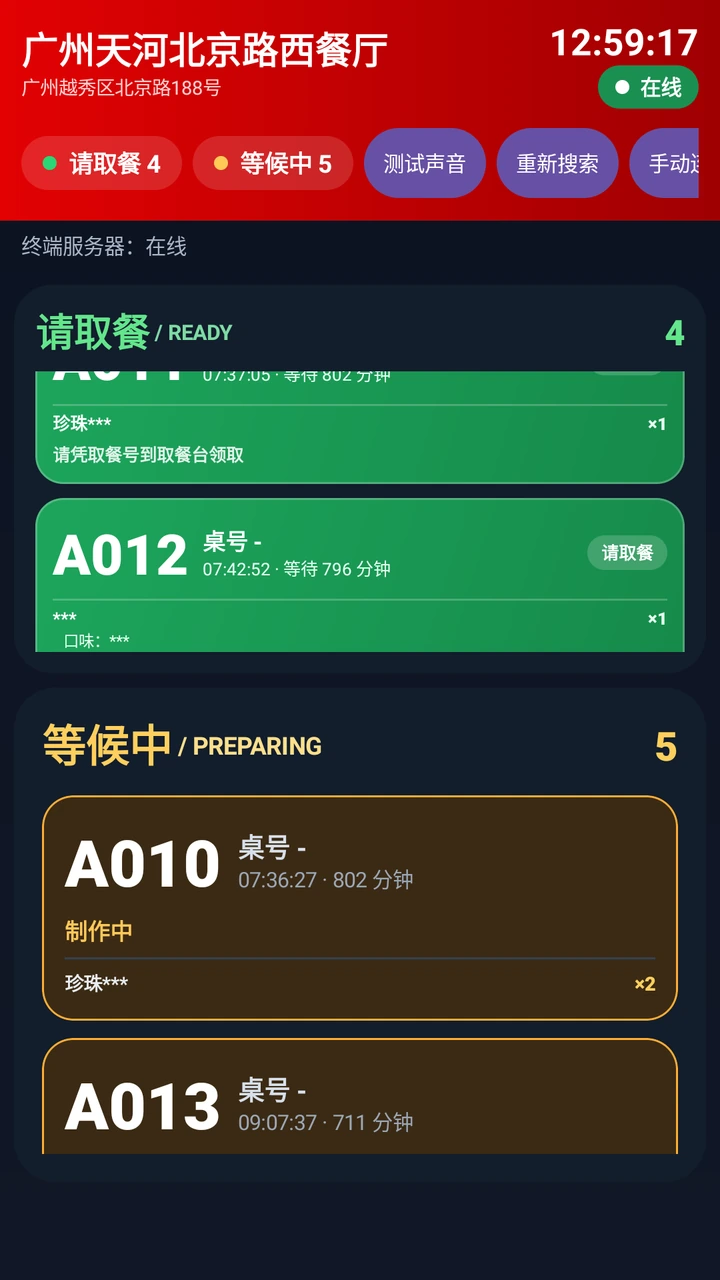
Shows preparing and ready orders with chime, voice announcement, bilingual text and automatic scrolling.

05

Web administration

Manage dishes, photos, pricing, payment APIs, ads, devices, analytics, refunds and backup.

06

Data & device services

Discover LAN devices automatically and store SQLite, images, settings and sales history locally.
Core principle: menu, orders, revenue and payment settings remain on site. Cloud services are used only for payment callbacks, licensing and remote assistance.
03

OPERATING CHALLENGES

Peak-hour speed, order accuracy and data visibility shape the customer experience

Traditional ordering often depends on manual handoffs, creating queues, incorrect orders, missed tickets, duplicate printing and limited sales visibility.

01

Peak-hour pressure

Large order bursts create queues and strain both cashier and kitchen teams.

02

Order errors

Verbal handoffs and duplicate entry cause wrong dishes, missed tastes or incorrect table numbers.

03

Kitchen blind spots

There is no shared status showing whether a ticket printed, preparation started or the order is ready.

04

Pickup uncertainty

Customers repeatedly ask about readiness when pickup numbers are not clearly displayed.

05

Refund mismatch

Revenue, shift totals and trend charts can diverge after refunds, weakening reporting.

06

Fragmented data

Menus, photos, orders, payment settings and backups are spread across devices.

Goal: faster customer ordering, fewer staff errors and instant management visibility.
04

PRODUCT MATRIX

Six client roles work together rather than compete

Each client has a clear role while sharing the same menu, order, payment status and sales data.

Self-order kiosk

Windows / Android

Role Menu, tastes, dine-in/takeaway, payment, printing

Value Shorter queues and higher peak capacity

Cashier terminal

Windows / Android

Role Manual orders, settlement, refunds, shifts, dual printers

Value Human service for complex orders

Kitchen board

Android / Web

Role Preparing orders and ready action

Value Fewer verbal handoffs and missed items

Customer display

Android / Web

Role Preparing/ready orders, voice and chime

Value Better pickup experience and traffic flow

Web admin

Browser

Role Menu, photos, payment, devices, reports, backup

Value One place to operate the store

Local service

Windows terminal host

Role SQLite, discovery, APIs and LAN services

Value Local ownership and offline operation

Suggested path: kiosk + admin first → add cashier → add kitchen and customer display → scale to multiple devices.
Ordering journey

Ordering journey

From the first tap to pickup, every order step stays visible.

05

END-TO-END WORKFLOW

Every step from customer order to revenue reporting is captured

Orders are created locally, confirmed by payment, routed to the kitchen, promoted to pickup when ready, then reflected in sales and refund reporting.

01

Customer orders

Browse categories, photos and hot tags; choose table, delivery address and tastes.

02

Payment confirmed

Enabled channels show their own QR flow; cash and card are recorded by the cashier.

03

Order enters queue

The terminal writes SQLite, prints receipts and kitchen tickets, then marks preparation.

04

Kitchen completes

Staff tap the order card; the customer display immediately moves it to Ready.

05

Pickup calling

The display plays chime and voice prompts; staff can call again and mark pickup.

06

Revenue reporting

Orders, refunds, shifts and payment methods feed net revenue and trends.

Customer experience
  • Clear categories, dish photos and pricing
  • Automatic and manual hot-item tags
  • Table selection for dine-in, address for delivery
  • Instant Chinese/English UI switching
  • Synchronized payment, pickup number and voice feedback
Store-side value
  • Less duplicate entry and manual handoff
  • Fulfillment starts only after confirmed payment
  • Kitchen state stays aligned with the customer display
  • Refunds reduce net revenue automatically
  • Orders, shifts and payment records remain traceable
  • Clients reconnect automatically and keep logs
06

SELF-SERVICE KIOSK

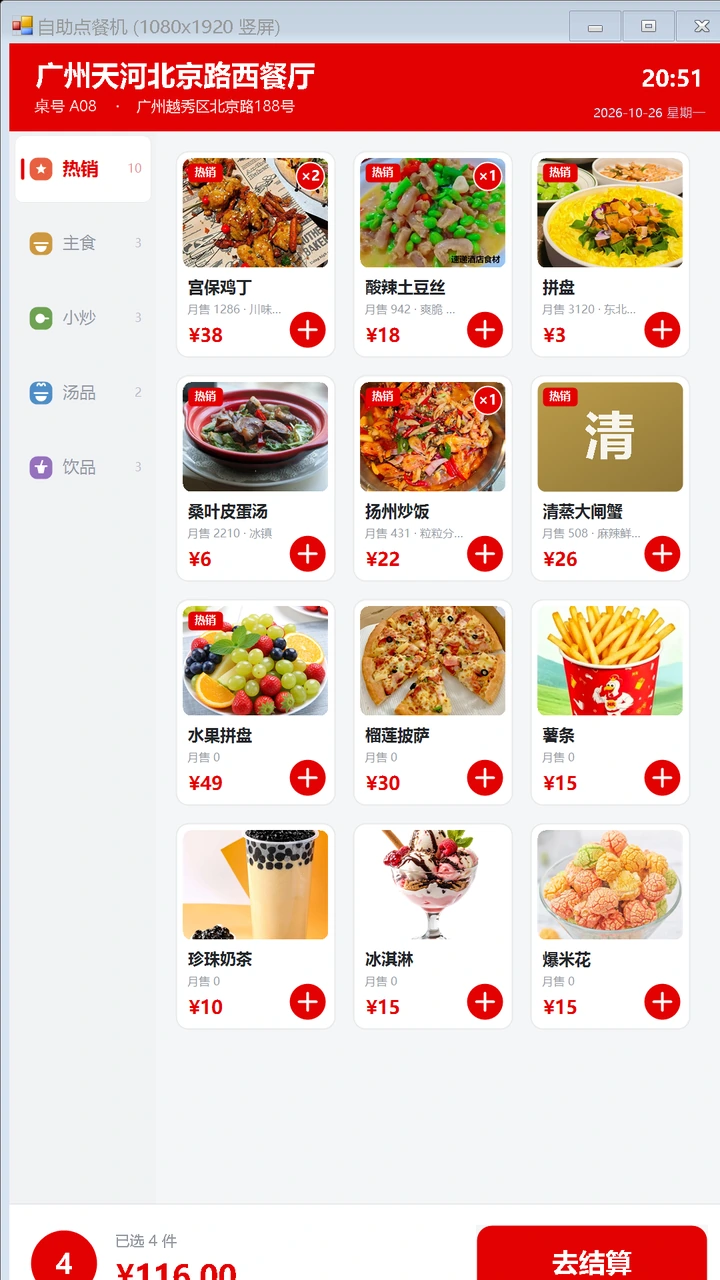
A complete ordering journey customers can finish independently

Clear information hierarchy

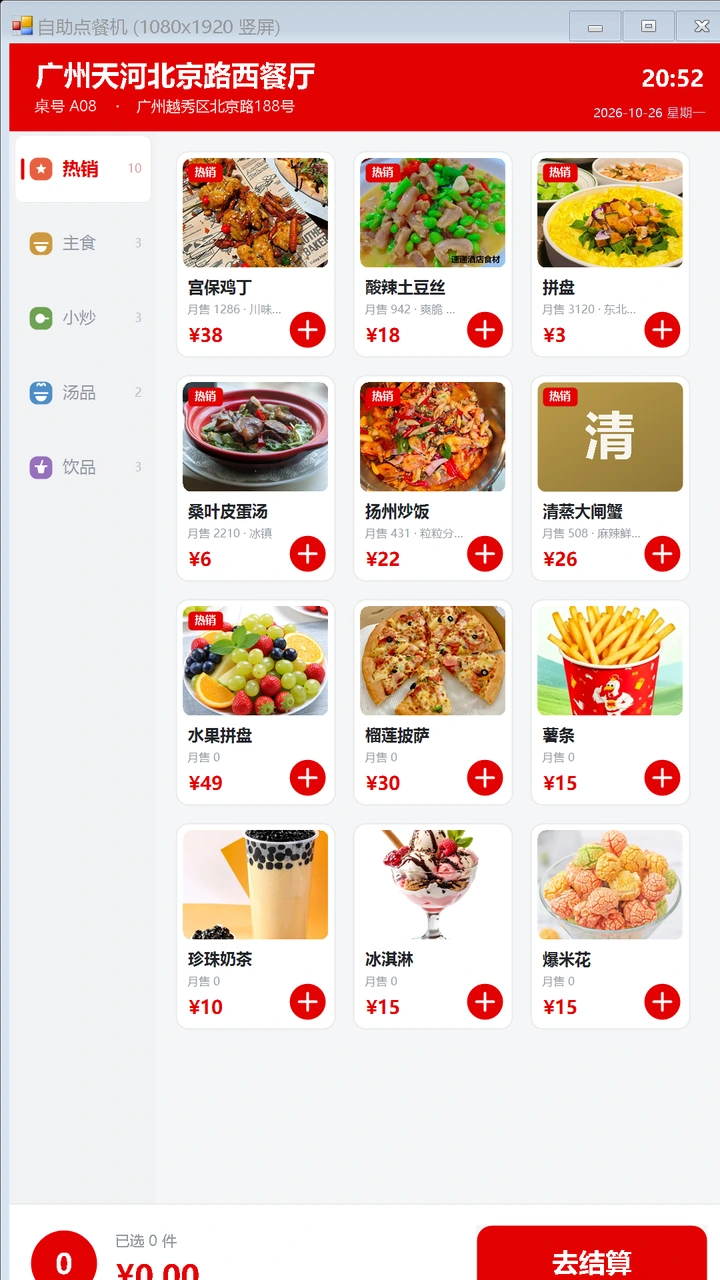
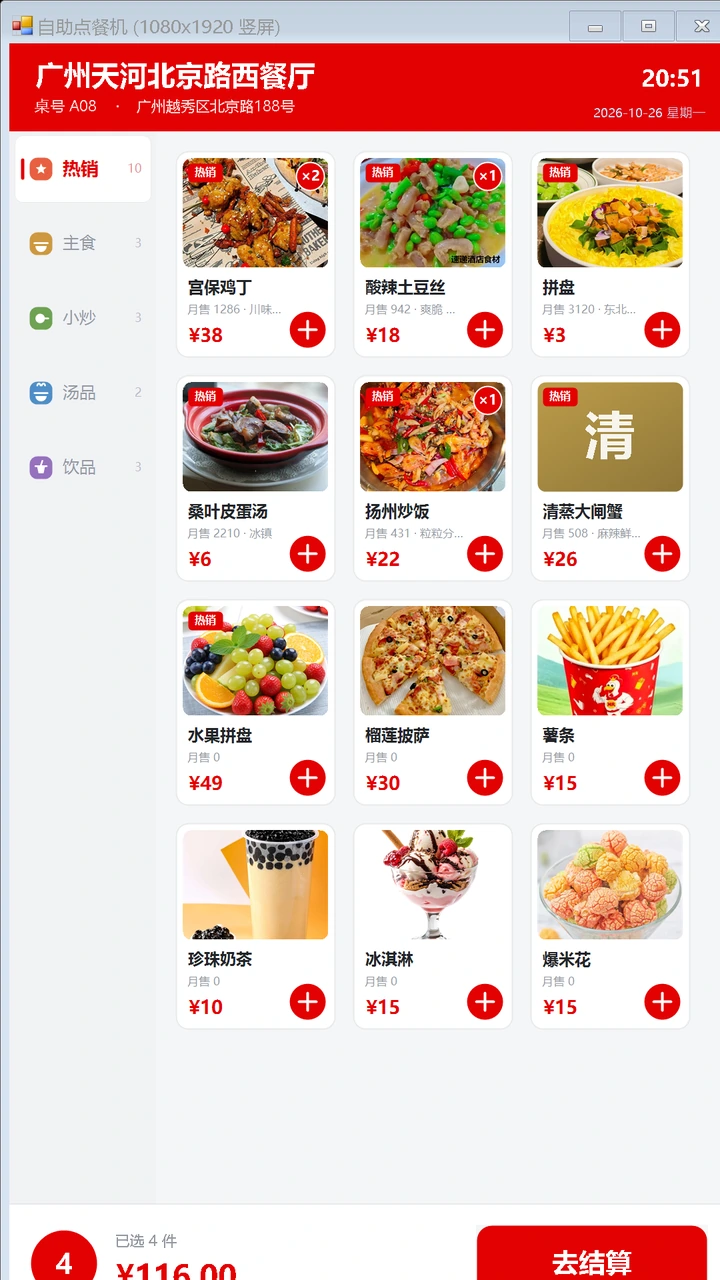
Category navigation with Hot, Staples, Wok, Soup and Drinks plus a View All action

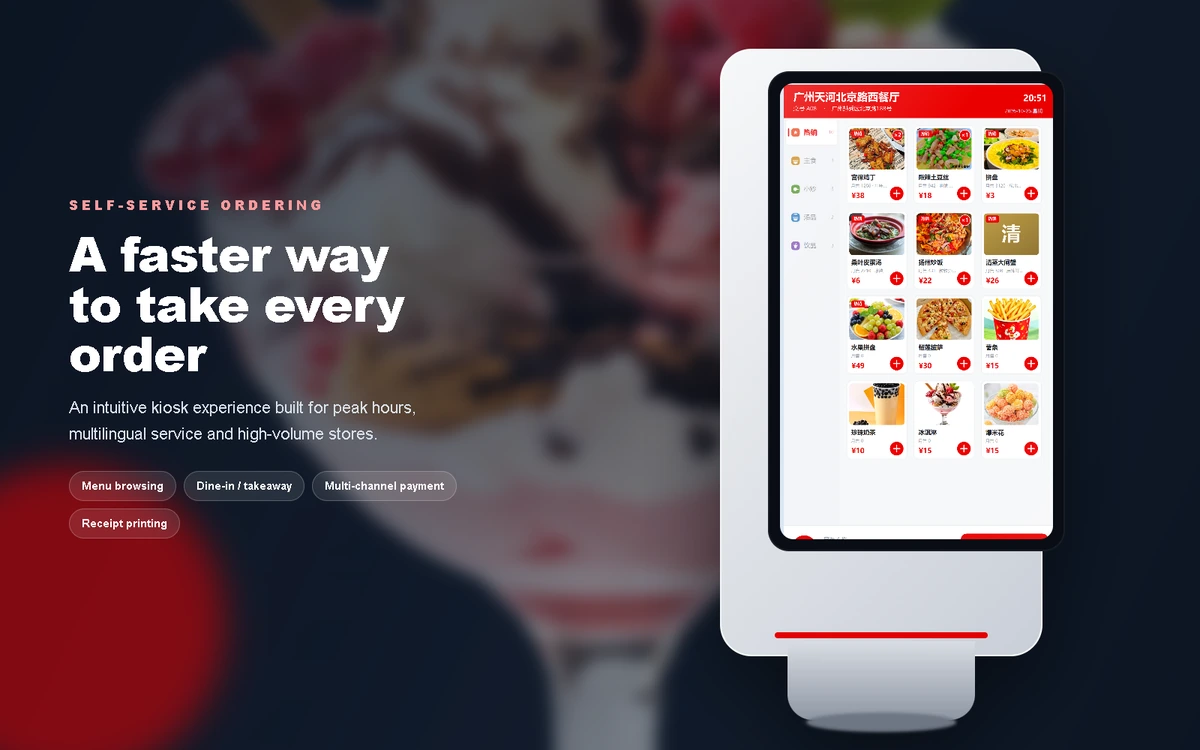
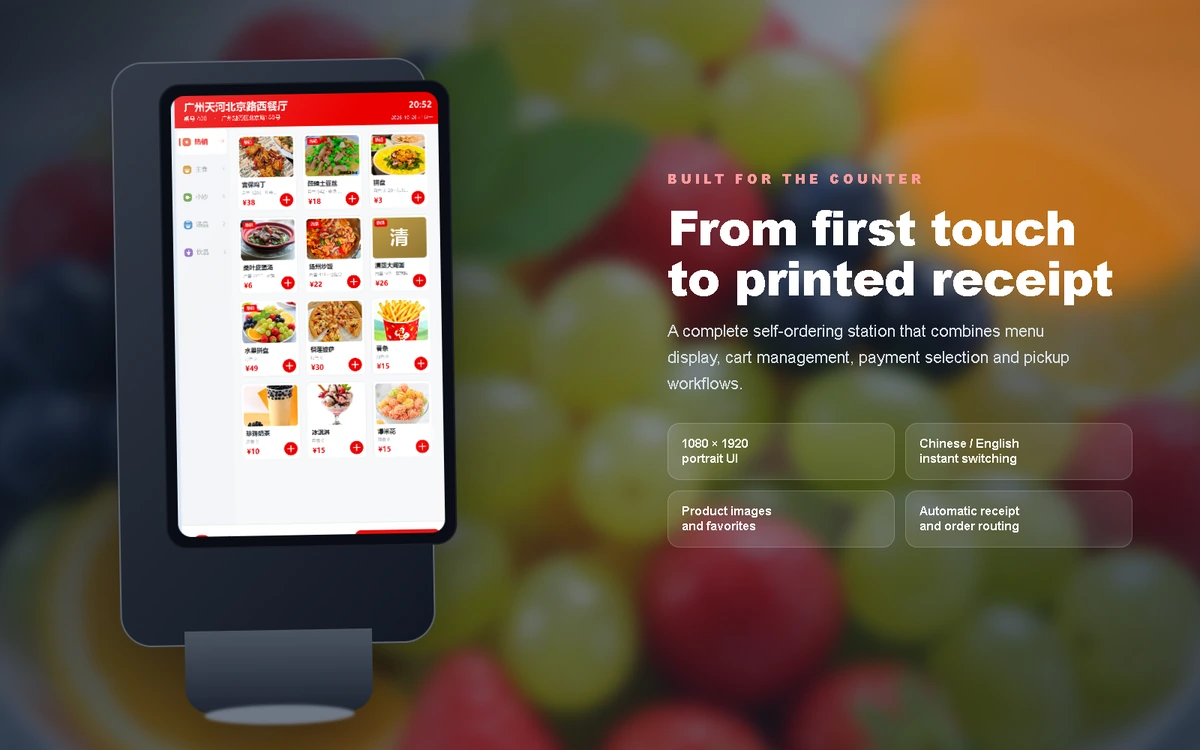
  • Large image cards, clear pricing, hot tags, taste choices, table and delivery modes, a cart and multi-channel payment in one portrait touch interface.
  • Cards show full photos, names, descriptions, prices, categories and hot badges
  • Tap the entire card to add an item, optimized for touch screens
  • Dish thumbnails preload after sign-in and are cached across category changes
  • Table number, dine-in/takeaway, notes and delivery address live in one order panel
  • Payment channels are generated dynamically from the enabled providers
  • After payment the kiosk returns home, prints receipts and records revenue
  • Runs on Windows 10/11 and Android 10–16, adapting to resolutions from 720×1280 to 1920×1080.
Product brochure visual
07

MENU & ORDERING EXPERIENCE

Photos, tags, tastes and advertising work together to improve conversion

Visual menu

Dish photos, names, prices, categories and descriptions appear consistently, with a color fallback when images are missing.

Hot tags

Top five items by monthly sales become automatic hot items; staff can also add manual tags.

Taste options

Mild, medium, hot and extra-hot choices can be configured per dish and displayed on selection.

Idle ads

When the kiosk is idle, ad images rotate automatically; touching the screen returns to ordering.

Category structure

Categories and order are customizable; Hot aggregates items across categories.

Bilingual UI

Chinese and English are available, while operator-entered dish content remains unchanged.

  • Menus support image uploads, pricing, descriptions, category order, taste options and automatic/manual hot tags. Idle periods can show an ad carousel.
Product brochure visual
08

KIOSK CONCEPT GALLERY

Three ways to place the self-ordering kiosk

Entrance kiosk

For entrances and host areas: welcome, browse and order.

Counter-side kiosk

Beside cashier counters to offload manual ordering and speed payment.

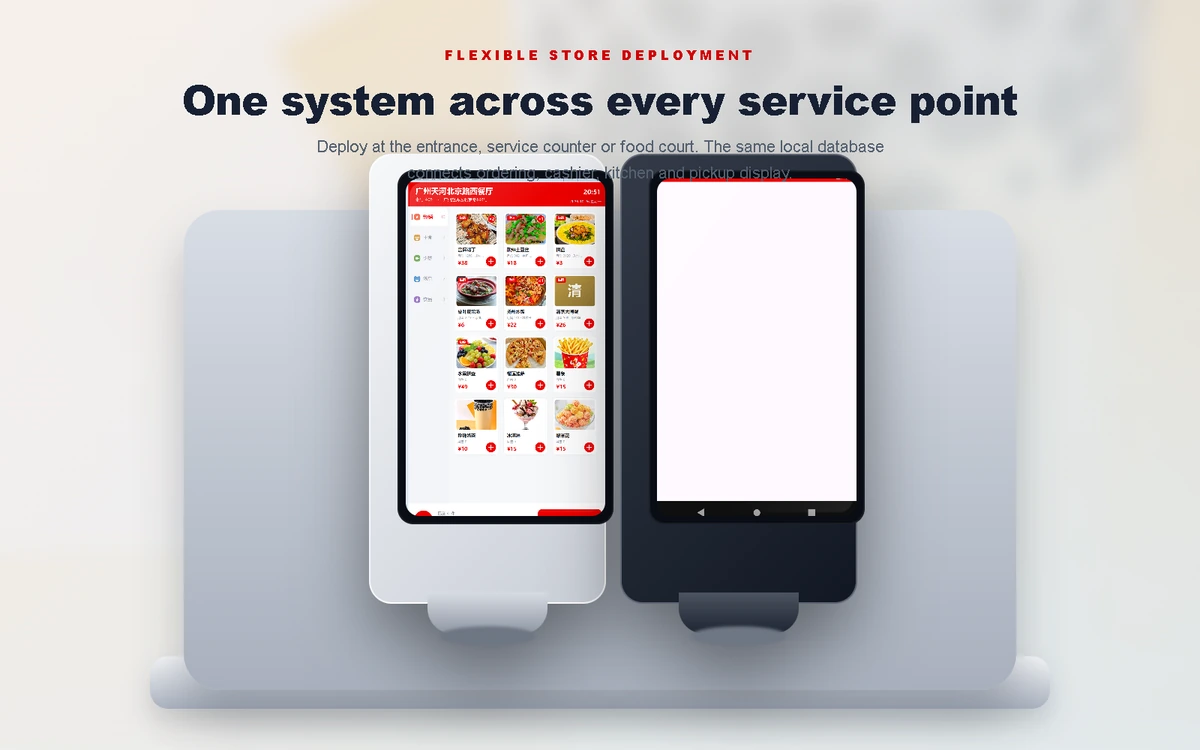
Multi-kiosk layout

For food courts and busy stores, with multiple kiosks sharing one menu and order flow.

  • Concept renders use the latest interface and illustrate entrance, counter and food-court placements.
  • Suggested hardware: 27–32 inch portrait display, 10-point capacitive touch, secured host and printer bay, wired network and power. Final enclosure can be customized.
Product brochure visual
Back office & payments

Back office & payments

One web admin controls menu, store content, payments and refunds.

09

MENU ADMINISTRATION

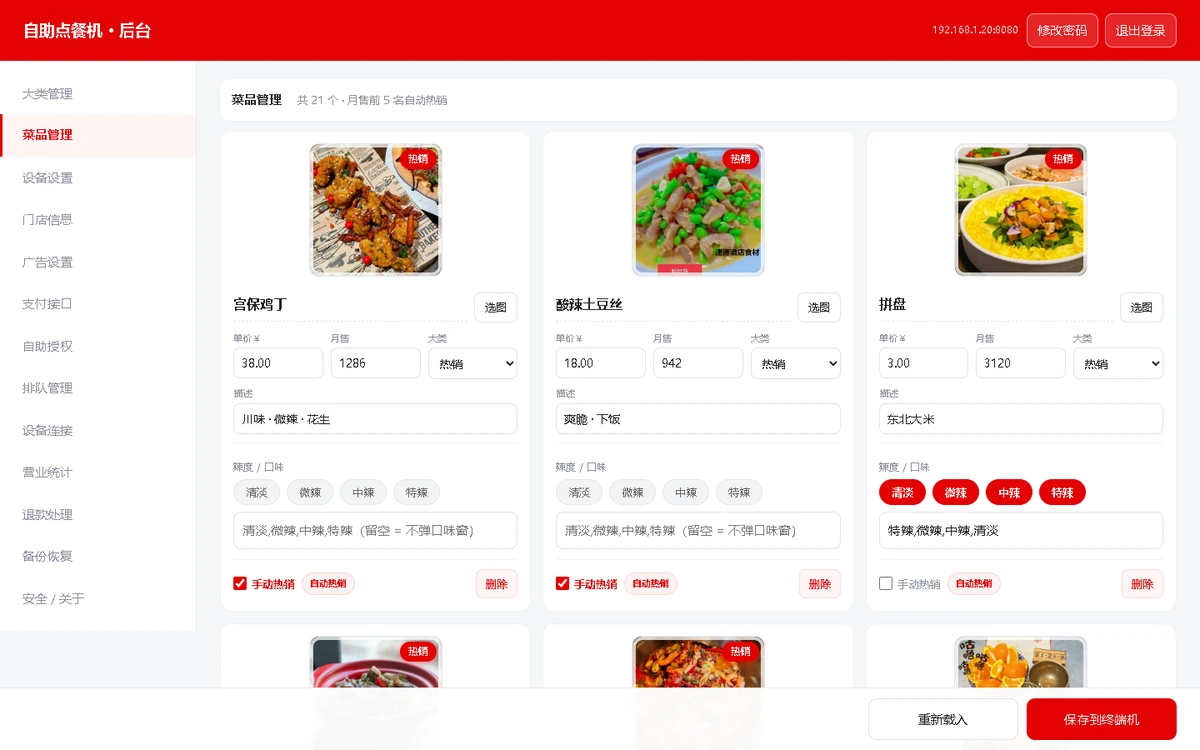
Maintain dishes, photos, price and hot tags in one place

Durian pizza

Upload a photo for each dish; images are included in local backups

  • The web admin edits photos, names, prices, monthly sales, categories, descriptions, tastes and hot status. Changes apply immediately after saving.
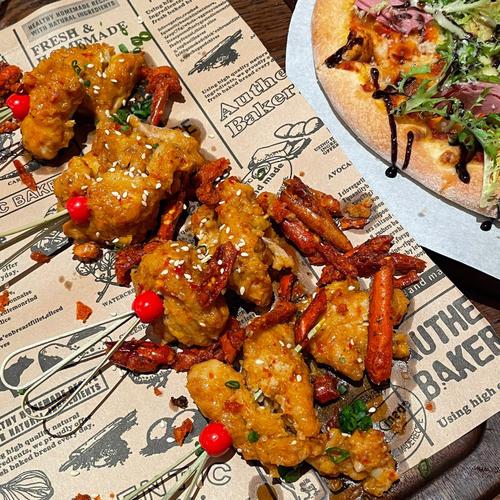
  • Kung Pao
  • Steamed crab
  • Fruit platter
  • Monthly sales drive automatic hot tags for the top five dishes
  • A manual hot checkbox remains available for new or high-margin items
  • Categories, pricing, descriptions, tastes and ordering are editable
  • Saved changes are read by both customer UI and admin from the same SQLite database
Product brochure visual
10

STORE & CONTENT OPERATIONS

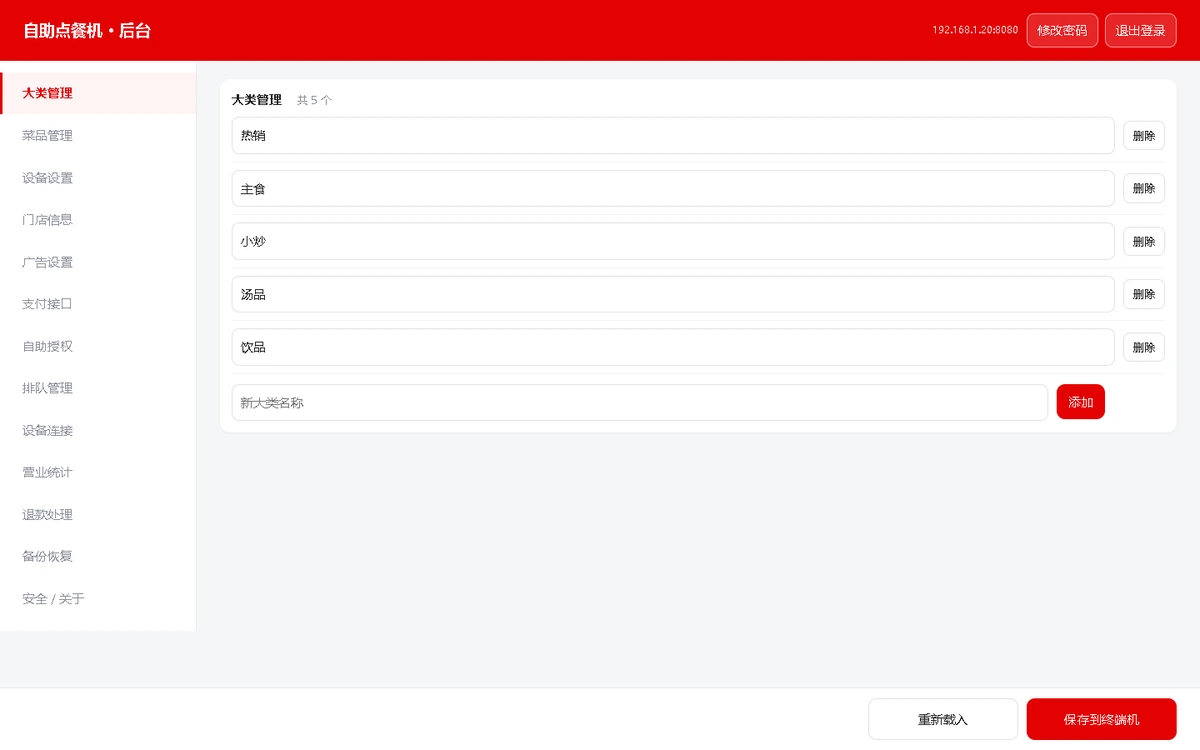
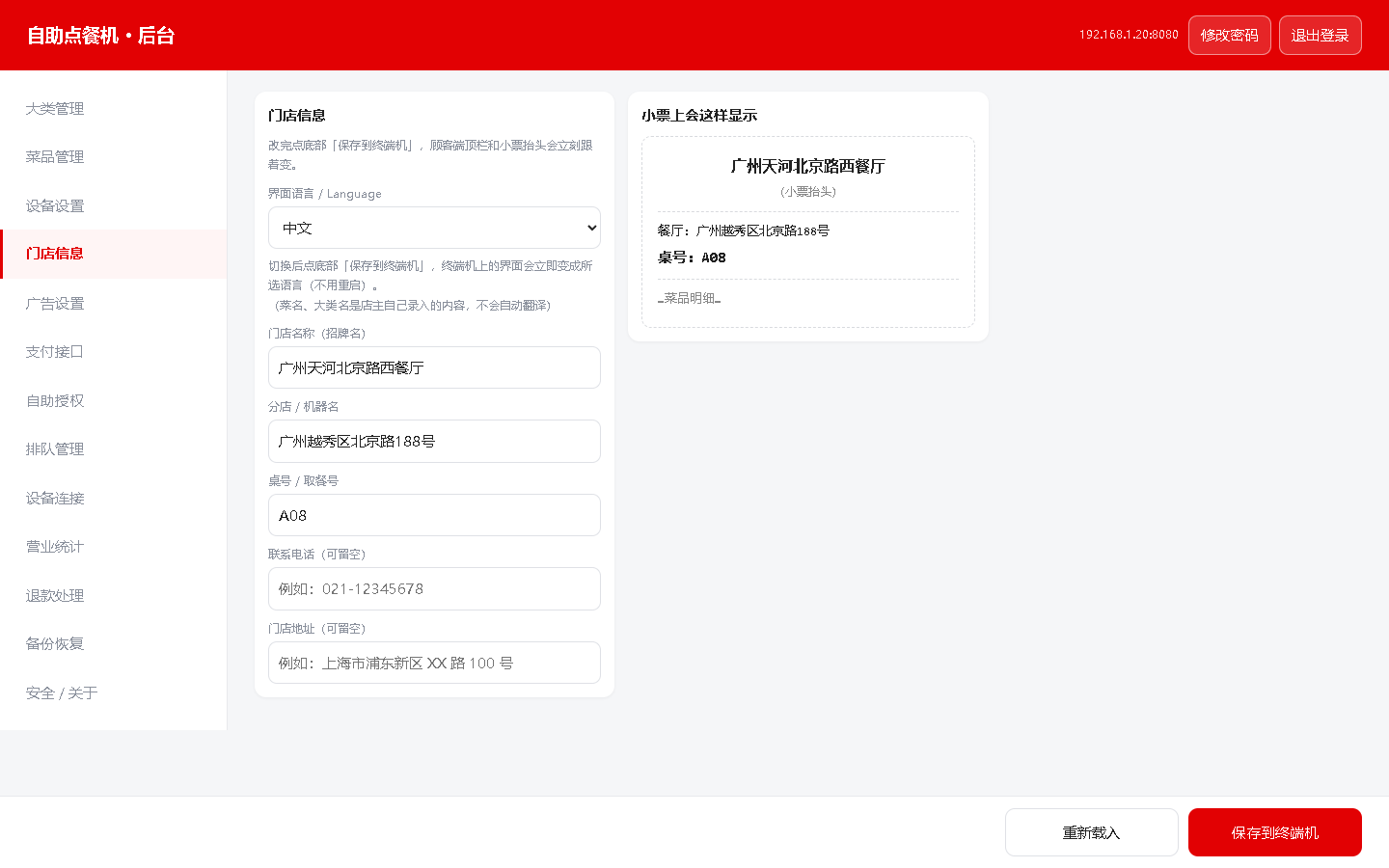
One back office for store details, category structure and advertising

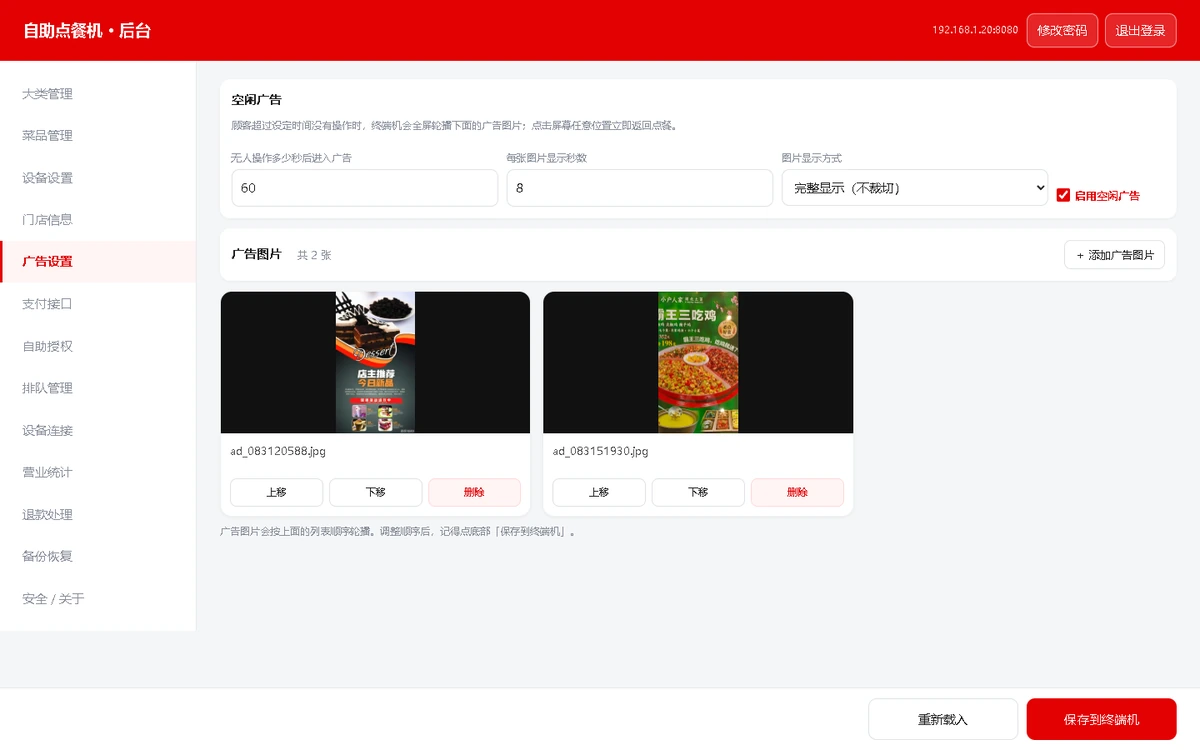
Idle ads

Store, branch, table and phone details update the kiosk header and receipt

  • Administrators manage store name, address, phone, UI language, category order and idle ads without accessing the operating system.
  • Category structure
  • Store profile & language
  • Chinese/English switching applies immediately without restarting
  • Category order controls kiosk navigation and supports cross-category Hot view
  • Ads support multiple images, display seconds, intervals and fit modes
  • All settings are stored in local SQLite and included in backup
  • Payment, printer and device settings are managed from the same web admin
  • Built for store managers: update pricing, photos, ads and categories without engineering support.
Product brochure visual
11

PAYMENTS & REFUNDS

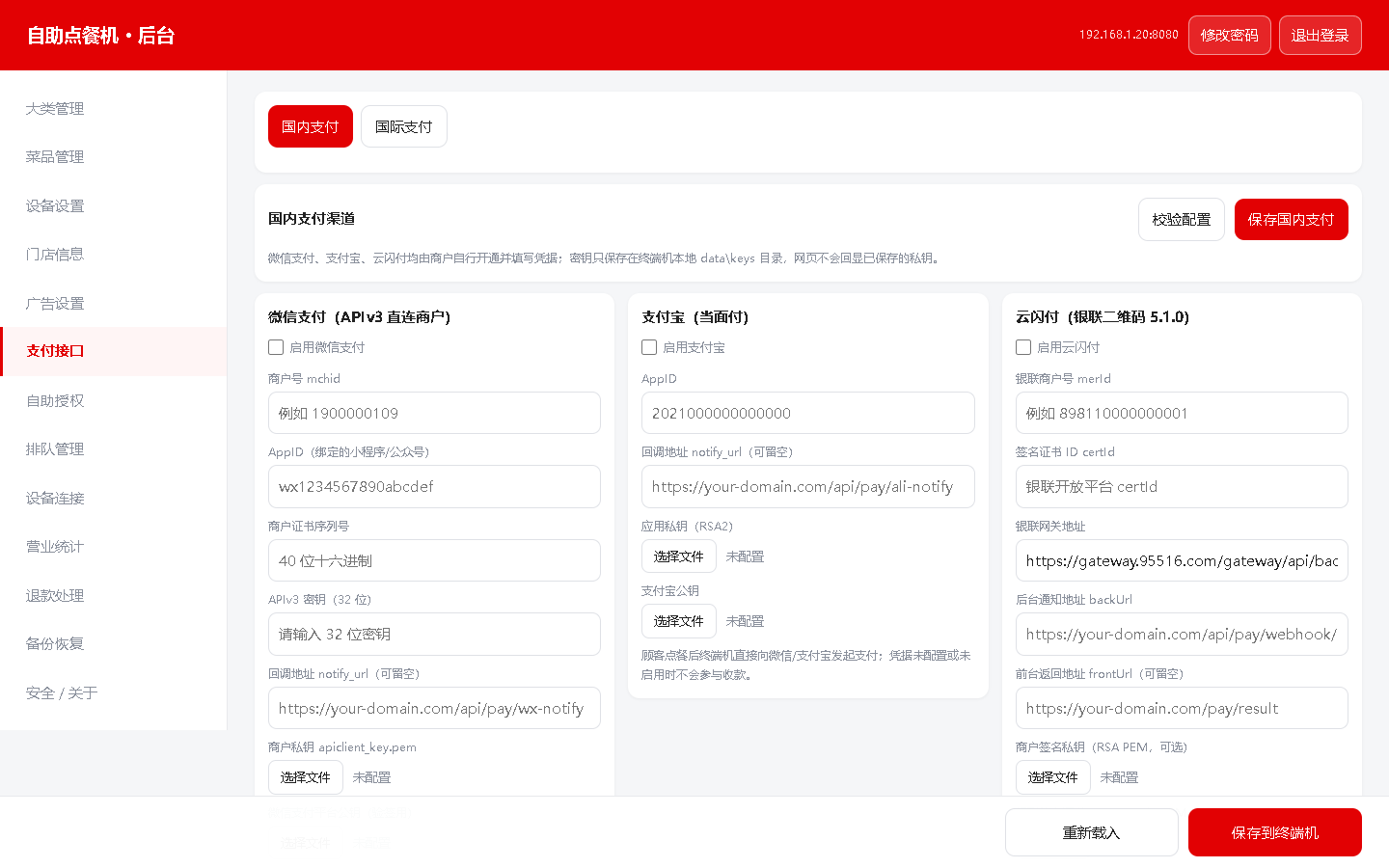
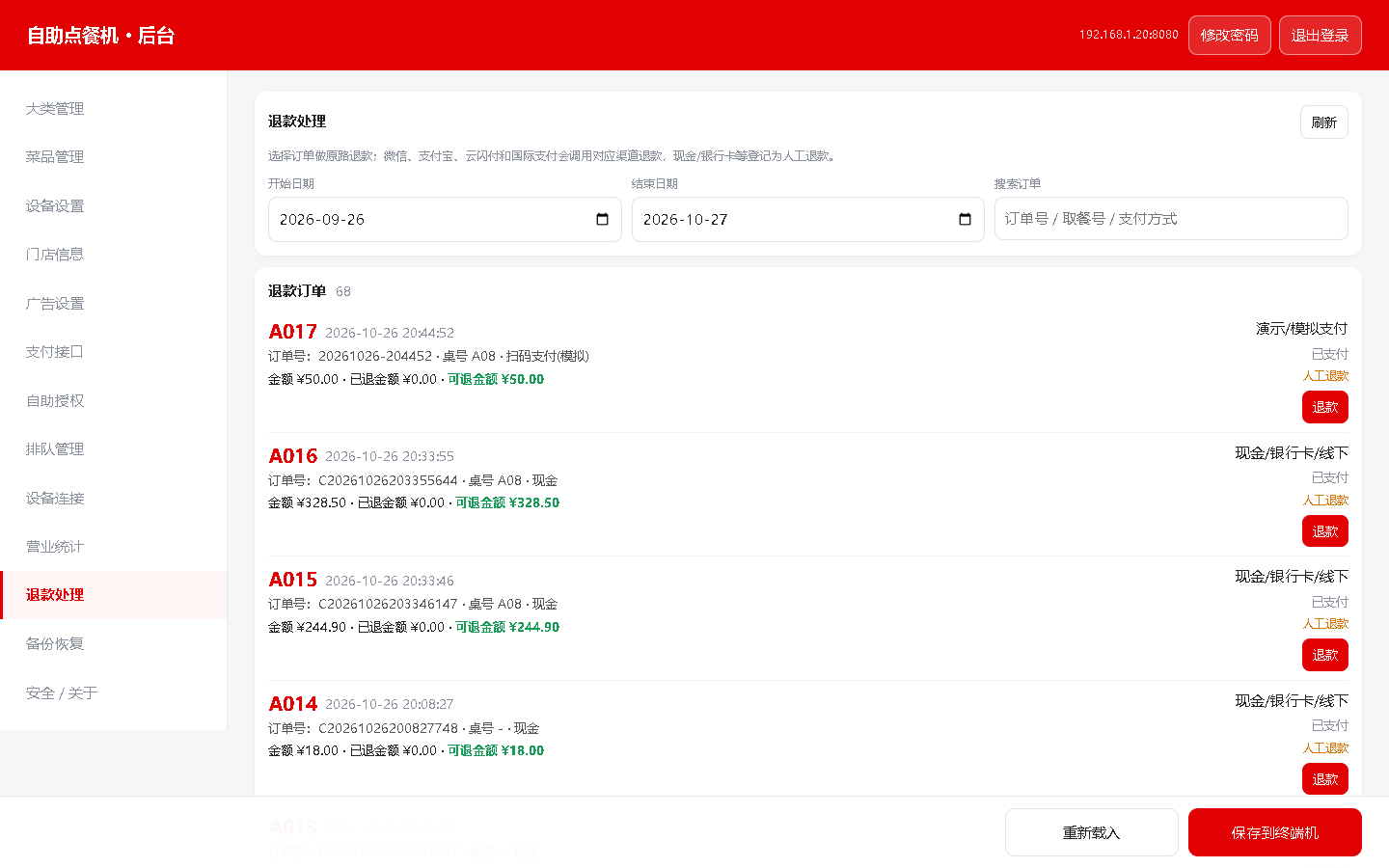
Payment channels follow enabled settings; refunds return through the original provider

Dynamic QR

Only enabled and fully configured providers appear; two providers can be shown together.

Unified callback

Results are confirmed by signature verification, webhook and status polling.

Original-route refund

Provider refund APIs are used; cash refunds are recorded manually.

Net reporting

Successful refunds reduce revenue, payment splits and trend values.

  • The system provides integration slots for WeChat Pay, Alipay, UnionPay, aggregate payment, Stripe, Paddle and PayPal. QR content and channel names come from the enabled configuration.
  • Domestic and international payment settings
  • Refund orders and records
Product brochure visual
Staff, kitchen & pickup

Staff, kitchen & pickup

Windows, Android, kitchen and pickup clients share the same local data.

12

WINDOWS CASHIER TERMINAL

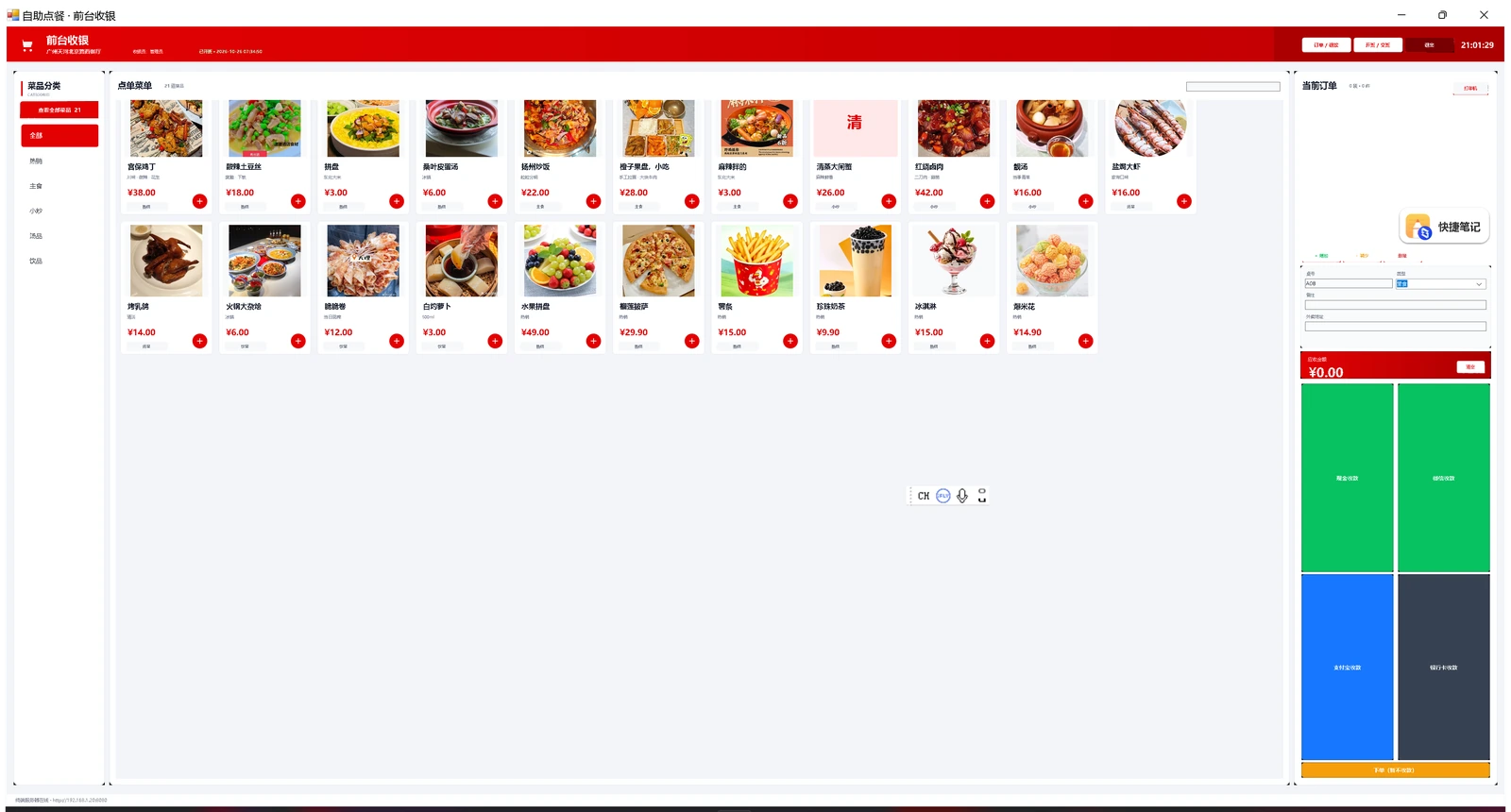
Built for manual ordering, settlement, refunds and dual printers

Photo-based menu

Every dish shows its photo and name, with a wider category rail and an easier scrollbar.

Order first, settle later

Print an unpaid receipt first and settle later from the order list.

Dual printers

Configure customer and kitchen printers independently with discovery and tests.

Refunds & shifts

Refund by order, record reasons, and calculate shift sales and cash totals.

  • A high-resolution adaptive interface with dish photos, category navigation, cart, order-first-pay-later flow, cash/QR/card methods and shift management.
  • Supports 1024×600, 1280×720 and 1920×1080, with Windows 10/11 high-DPI scaling.
Product brochure visual
13

ANDROID CASHIER TERMINAL

Extend assisted cashier workflows to tablets and mobile devices

Adaptive UI

Optimized for landscape, portrait and tablet resolutions with clear branding and controls.

Shared APIs

Uses terminal menu and order APIs instead of opening the database file directly.

Printing & tests

Configure printers, test connections and print test receipts on Android.

Orders & refunds

Order first, settle later, support dine-in, delivery, cash and online payments.

Shifts & reports

Open/close shifts and view orders, revenue and payment summaries from the shared database.

Mobile deployment

Works on tablets, handhelds and temporary checkout stations with less dedicated hardware.

  • The Android cashier calls terminal APIs and shares menu, orders, payment methods, printers and sales data. It suits mobile checkout, added tables and temporary points.
Product brochure visual
14

KITCHEN BOARD

Kitchen status stays live from ticket print to completion

Ticket prints

The terminal or cashier prints a kitchen ticket and marks the order preparing automatically.

Card appears

The board shows items, quantities and tastes in time order with a clear status.

Tap complete

Staff tap the card when finished; no second confirmation is required.

Pickup call

The customer display shows the pickup number and plays chime plus voice.

  • A printed ticket enters preparation automatically. Staff only tap the card when finished; the customer display immediately moves the order to Ready and starts the pickup call.
  • 01
  • 02
  • 03
  • 04
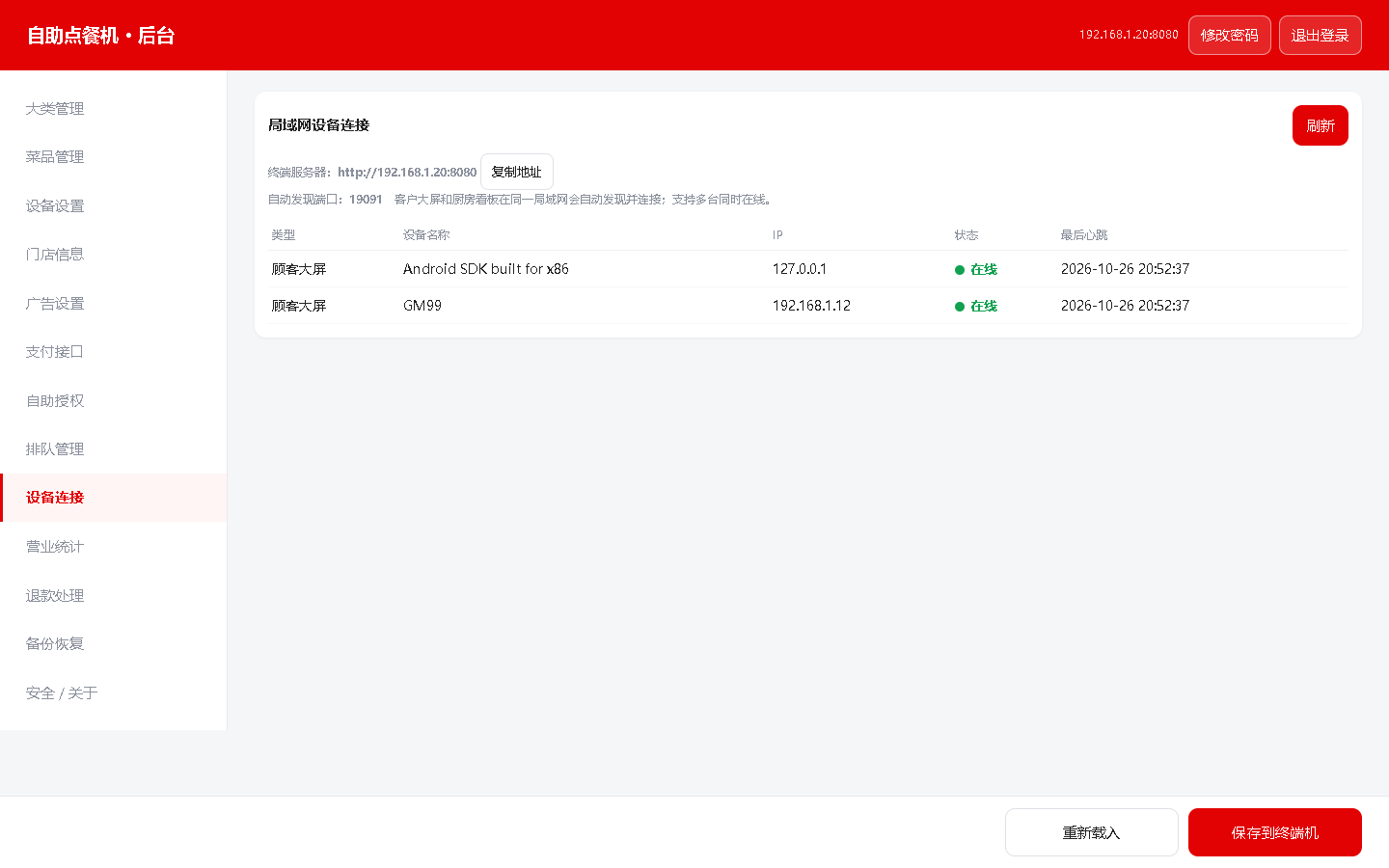
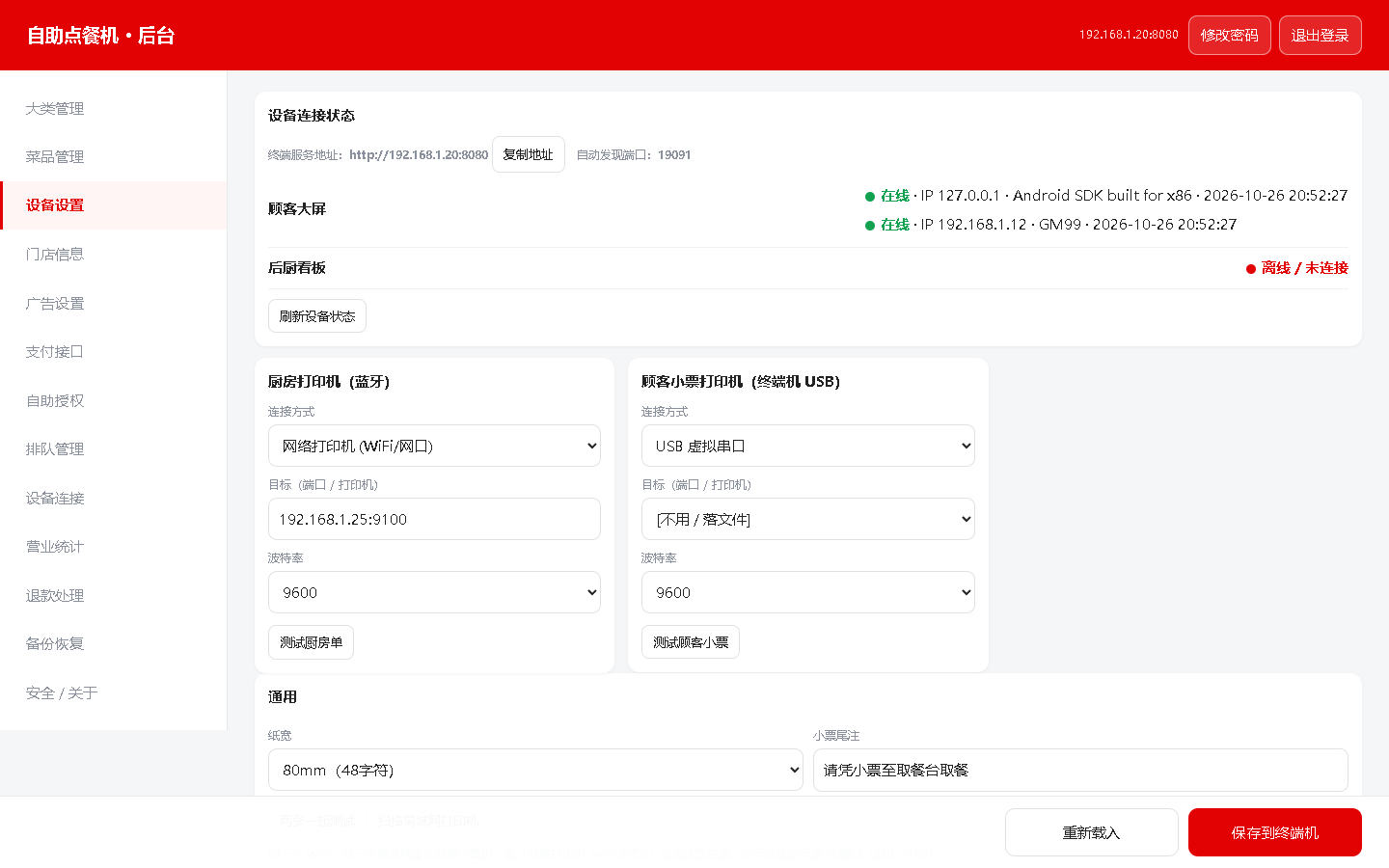
  • Automatically discovers multiple kitchen boards on the LAN; online status, IP and last heartbeat are visible in admin.
Product brochure visual
15

CUSTOMER PICKUP DISPLAY

Clear visual and voice pickup information

Visual hierarchy

Preparing and Ready are separated; pickup number, table and wait time remain clear.

Voice calling

A chime plays before a natural voice prompt announces the pickup number.

Call again

Staff can replay the call from the browser or kitchen board if the guest is away.

Bilingual

Changing the terminal to English also updates display headings and pickup voice.

Privacy

Dish names and tastes show only a prefix followed by ***.

Auto-scroll

Overflow content moves slowly down, pauses, then moves back up without abrupt jumps.

  • Ready cards use a compact layout with partially masked dish names and tastes. When content exceeds the screen, it scrolls slowly up and down automatically.
Product brochure visual
Connectivity, analytics & data

Connectivity, analytics & data

Devices find each other on the LAN; reports stay available offline.

16

DEVICE CONNECTIVITY & LAN

The terminal discovers multiple displays and kitchen boards automatically

Auto discovery

Displays and kitchen boards discover the terminal by UDP or can use a manual IP.

Multiple devices

Several customer and kitchen boards can connect at once, each with its own IP.

Status colors

Online and offline states use distinct colors and show the latest heartbeat.

Network advice

Use a shared switch where possible; AP isolation blocks peer access, wired links are most stable.

  • Terminal service URL, online state, device IP, model and last heartbeat are shown together. Multiple displays and kitchen boards can be online at once.
  • LAN device list
  • Display and kitchen device settings
Product brochure visual
17

SALES ANALYTICS

Net revenue, orders, payment mix and trends in one view

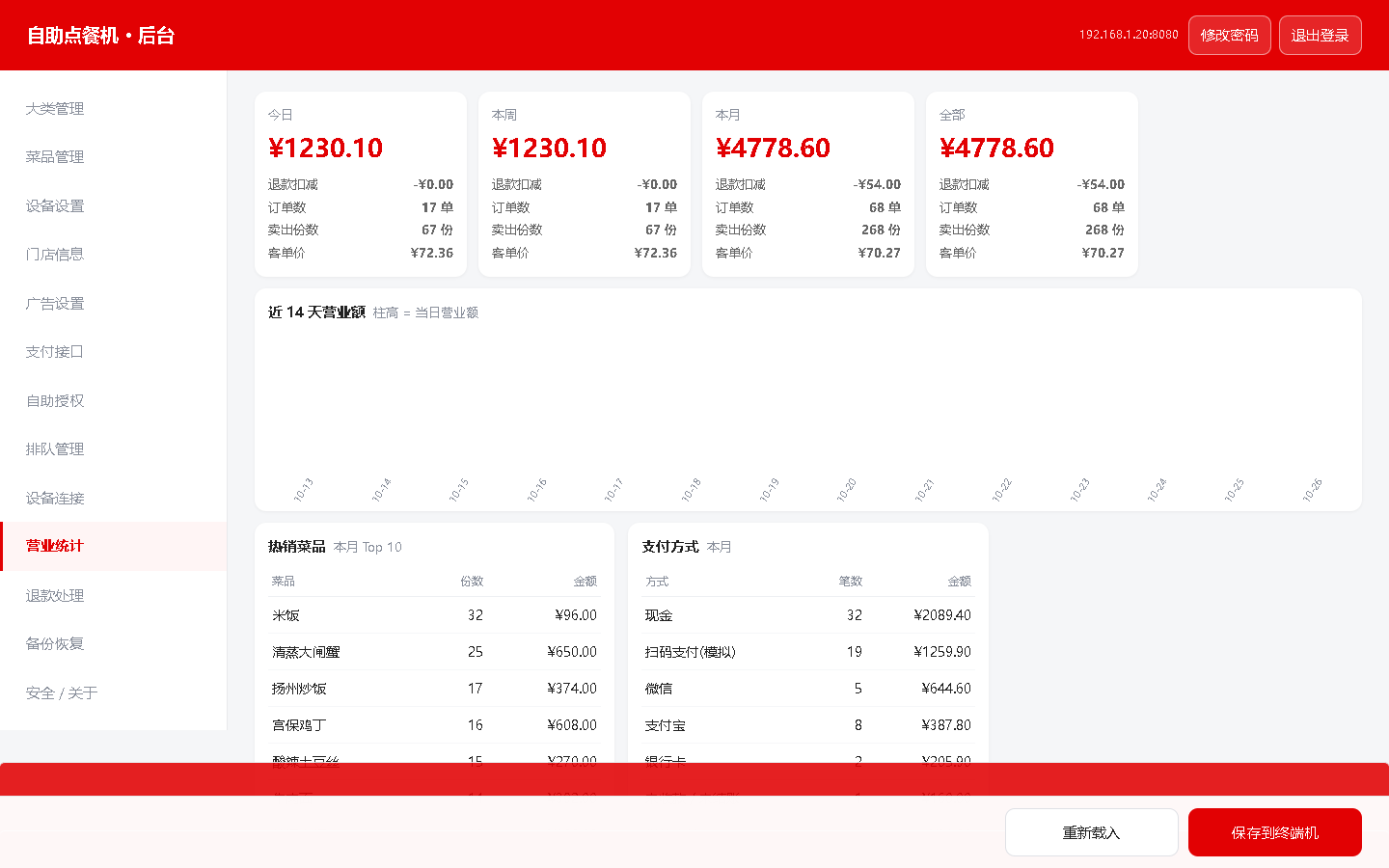
Refund deduction

Refund amount is shown separately for reconciliation

Payment mix

Breakdowns by WeChat, Alipay, cash, card and more

14-day bars use the same net revenue logic

Top 10 dishes aggregate real orders for the current month

Refund changes refresh reporting automatically

All reports read local SQLite and remain available offline

  • Totals cover today, this week, this month and all time. Refunds reduce net revenue, and trend charts use the same calculation.
  • Net revenue
  • Summary cards show revenue after refunds
  • Trend analysis
  • Data supports shift close, daily reports and store comparisons
Product brochure visual
18

BACKUP & DATA PROTECTION

Manual backup, scheduled backup and local file restore

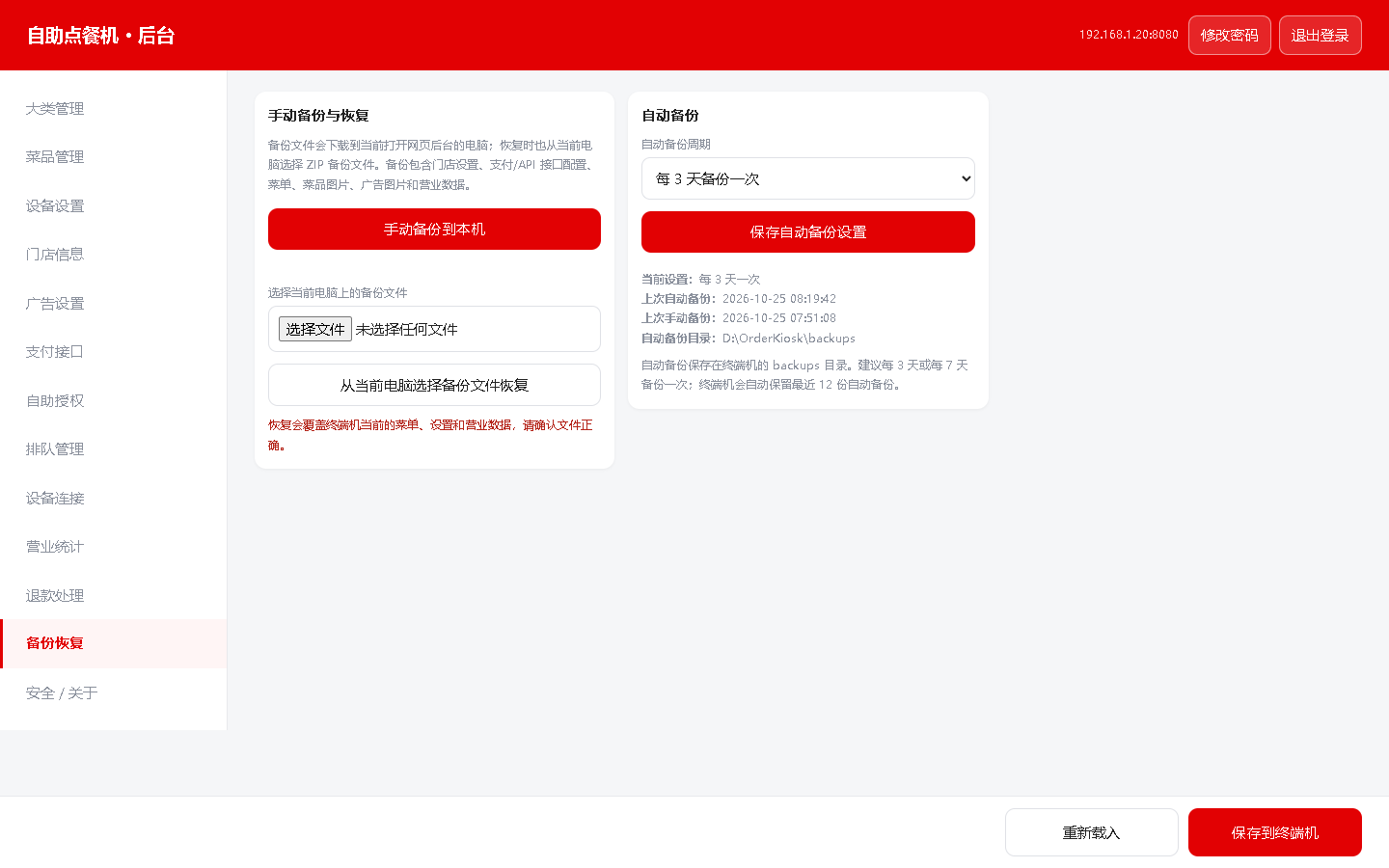
Complete ZIP

Database, settings, menu, photos and ads in one archive.

Manual backup

Downloads to the computer currently opening the admin.

Local restore

Select a ZIP from the current computer and confirm.

Data ownership

The store keeps backup files and can copy them to external storage.

  • The backup ZIP contains SQLite, store and payment settings, printer settings, menu, dish images and ad images. Automatic schedules support 3, 7, 15 or 30 days.
  • Backup and restore admin
  • 01
  • 02
  • 03
  • Scheduled backup
  • Off / every 3, 7, 15 or 30 days.
  • 04
  • 05
  • Recommendation: create a manual backup before upgrades, device replacement or major menu changes.
Product brochure visual
19

LOCAL-FIRST ARCHITECTURE

Store data stays local; cloud handles payment, licensing and remote services

Inside the store

Menu, orders, payment state and revenue write to one SQLite database

Cloud role

Receives payment callbacks and notifies the terminal

Provides licensing, version release and remote assistance

Does not store the complete operational database

  • The terminal is the master business database. Menu, orders, revenue, printer and payment settings stay in local SQLite; other clients access them through LAN APIs.
  • Customer
  • Kiosk / QR ordering
  • Staff
  • Cashier / kitchen / display
  • Local master
  • SQLite + photos + settings
  • Terminal service
  • 8080 APIs / discovery
  • External services
  • Payments / license / support
  • Customer display and kitchen board discover the terminal automatically
  • Printer settings stay local and continue working without internet
  • Order, pickup, refund and shift records stay consistent
  • Successful payments are still recorded and printed locally
Deployment & business value

Deployment & business value

Start with one terminal and scale to the store format you need.

20

DEPLOYMENT & REQUIREMENTS

Start with one terminal and expand with the store

Terminal host

Windows 10/11, 8GB RAM recommended, SSD, stable power, fixed LAN IP

Kiosk screen

27–32 inch portrait, 10-point capacitive touch, 1080×1920 or higher

Cashier device

Windows/Android tablet or all-in-one; optional drawer, scanner and printer

Kitchen device

Android tablet/TV box or Windows browser with HDMI display

Customer display

Android APK or browser; auto-discovers the terminal on the LAN

Network

Shared switch preferred; avoid AP isolation; provide Ethernet and power

Install terminal

Run setup and configure store, menu and admin password.

Configure payments

Open merchant accounts and enter API credentials.

Connect clients

Install APKs or open browsers and auto-discover the terminal.

Acceptance test

Test order, payment, dual printing, pickup calling and refunds.

  • Install the Windows terminal first, then connect cashier, kitchen and customer displays. Prefer one shared switch for all devices.
  • 1
  • 2
  • 3
  • 4
21

SCENARIOS & BUSINESS VALUE

Built for quick service, casual dining, tea shops, canteens and food courts

Quick service

Fast peak ordering, dine-in/takeaway and pickup calls

Tea & snacks

Photo menu, hot tags, taste choices and QR payment

Canteens

Fixed menu, window coordination and multiple kitchen boards

Food courts

Shared menu and order flow across kiosks with unified reporting

Efficiency

Customers self-order; cashier and kitchen avoid duplicate entry.

Accuracy

Dishes, tastes, tables and order states move as structured data.

Experience

Voice pickup, bilingual UI and photo menus raise perceived quality.

Control

Local SQLite, complete backup and net-of-refund reporting.

Scalability

Add Windows, Android and web clients as stores grow.

Adoption

Standard installers, test flows and visual admin reduce deployment effort.

  • The same system can be configured for different store formats without rebuilding the software for each customer.
  • Start with a single-store trial, then add cashier, kitchen, displays, cloud payments and remote operations.
UPGRADE THE ORDERING EXPERIENCE

One system. For every order.

From ordering and payment to kitchen preparation, pickup calling, reporting, refunds and backup, TANGSHI connects the full store workflow in one local-first platform.

KioskCashierKitchen boardCustomer displayWeb adminLocal backup
Talk to sales
Contact your local sales representative to arrange a demo and trial
One system. For every order.
SOLUTION DOWNLOADS

Want to learn more?

Download the solution brochures or the complete software package.

SOFTWARE · ZIP · LATEST

Complete software package

Windows + Android · 457.6 MB

Updated 2026-11-03 · installers, manuals and payment guides

Download software package